This is the abridged developer documentation for stacky
# Compose-first Docker stack manager
> Manage your Docker Compose stacks from a fast, modern web UI. Your compose files stay the source of truth, image updates are one click, and stacky can even update itself.
 ## Why stacky? [Section titled “Why stacky?”](#why-stacky) [Dockge](https://github.com/louislam/dockge) proved that a stack manager should keep your compose files on disk, where you and your other tools can still use them. Stacky keeps that idea and builds a modern experience around it. Compose files are the source of truth Every stack is a plain directory: `compose.yaml`, an optional `.env`, and anything else it needs. Stacky reads Dockge’s layout unchanged, so migrating takes no conversion. A real editor Compose schema completion and hover docs, validation by `docker compose config`, and a diff of every change before you deploy. Your comments and formatting are never rewritten. Errors you can act on “Port 8080 is already used by container `x`” instead of a wall of terminal output. Every failure comes with a hint and the full log. Image updates Native registry digest checks plus an optional What’s Up Docker integration. Update one service, a stack, or everything, and see major, minor and patch updates at a glance. Self-updating Stacky manages its own stack. Updating it uses a short-lived helper container, waits for a healthy start, and rolls back automatically if something goes wrong. Agents and automation A built-in [MCP server](/guides/agents/) lets AI agents inspect, edit and deploy stacks, and a token-authenticated [REST API](/reference/api/) with an OpenAPI document serves everything else. Built for the home lab One container and multi-arch images (amd64 and arm64). Dark mode, a command palette, and it works on your phone. ## A closer look [Section titled “A closer look”](#a-closer-look) 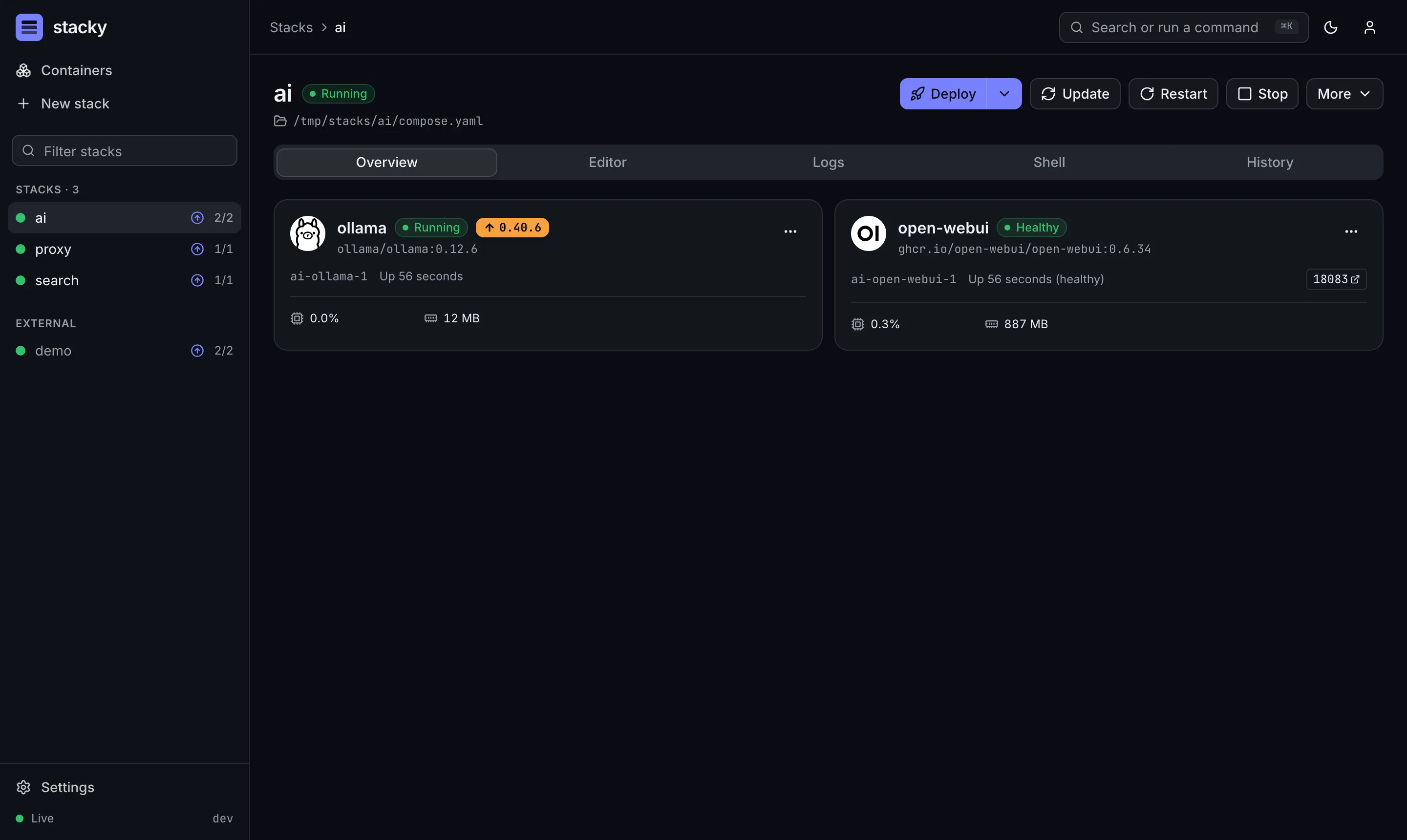 Stack pages: services, health, live stats and one-click actions 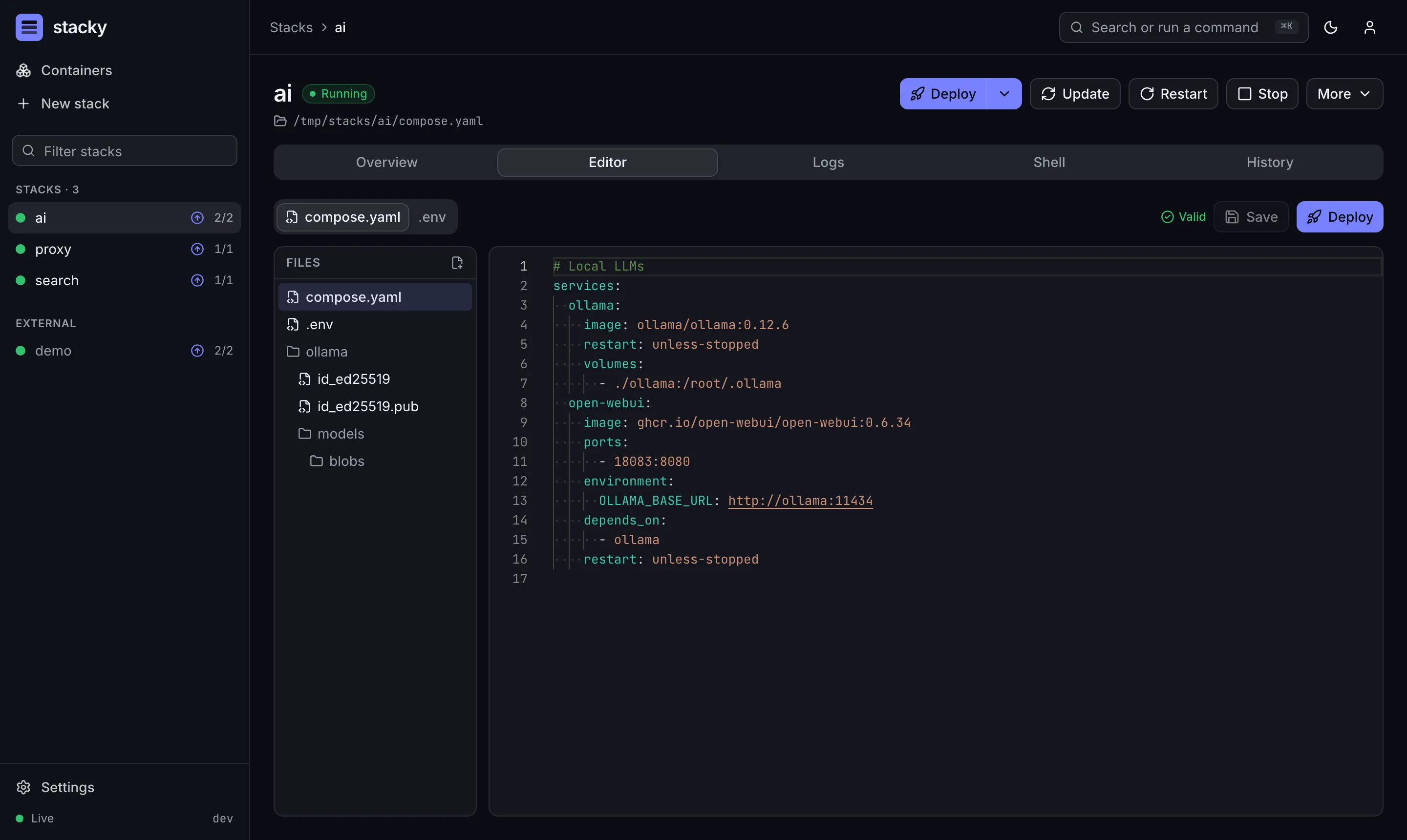 A real editor: completion, validation and a diff before every deploy 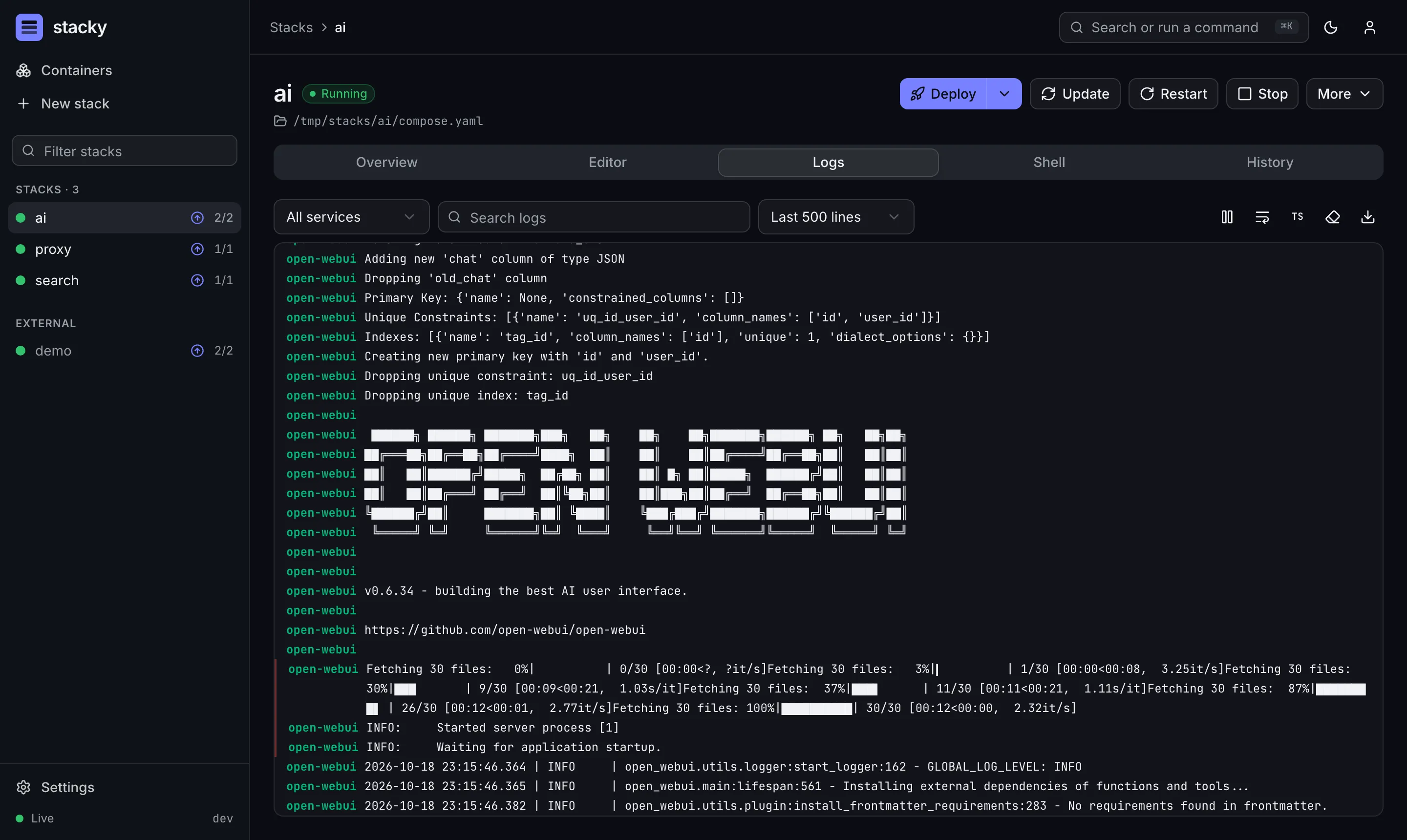 Live logs with search, filters and download ## How it works [Section titled “How it works”](#how-it-works) **1. Edit**Change `compose.yaml` or `.env` in the editor **2. Validate**`docker compose config` checks it **3. Review**See a diff of exactly what changes **4. Deploy**`docker compose up -d` streams progress **5. Observe**Live status, logs, stats and shells Read more in [How it works](/how-it-works/overview/). ## Quick start [Section titled “Quick start”](#quick-start)
```sh
curl -fsSL https://stacky.lgtm.page/install.sh | sh
```
Or write the compose file yourself: /opt/stacks/stacky/compose.yaml
```yaml
services:
stacky:
image: ghcr.io/patsissons/stacky:latest
restart: unless-stopped
ports:
- 5005:5005
volumes:
- /var/run/docker.sock:/var/run/docker.sock
- ./data:/app/data
- /opt/stacks:/opt/stacks
```
```sh
cd /opt/stacks/stacky && docker compose up -d
```
Then open `http://:5005`.
# Install
> Run stacky on a Docker host with a single compose file.
## Quick install [Section titled “Quick install”](#quick-install) On any Linux host with Docker:
```sh
curl -fsSL https://stacky.lgtm.page/install.sh | sh
```
The script: 1. checks that Docker and the compose plugin are available 2. writes `/opt/stacks/stacky/compose.yaml` 3. starts stacky and prints the URL to open Running it again updates stacky. It never overwrites your compose file. [Read the script](https://stacky.lgtm.page/install.sh) before running it if you like. Options can be set as environment variables or flags:
```sh
curl -fsSL https://stacky.lgtm.page/install.sh | sh -s -- --port 8080 --stacks-dir /srv/stacks
```
| Variable / flag | Default | | -------------------------------------------- | ---------------------------------- | | `STACKY_STACKS_DIR` / `--stacks-dir` | `/opt/stacks` | | `STACKY_PORT` / `--port` | `5005` | | `STACKY_IMAGE` / `--image` | `ghcr.io/patsissons/stacky:latest` | | `STACKY_ADMIN_USER`, `STACKY_ADMIN_PASSWORD` | create the admin up front | If your user can’t use Docker or write to the stacks directory, the script uses `sudo` for those steps. You can also pipe it to `sudo sh`. ## Manual install [Section titled “Manual install”](#manual-install) Stacky runs as a single container next to your other stacks. It needs: * access to the Docker socket, so it can run `docker compose` and watch containers * your stacks directory, mounted at **the same path** it has on the host * a small data directory for its database and state ## 1. Create stacky’s own stack [Section titled “1. Create stacky’s own stack”](#1-create-stackys-own-stack) Stacky manages itself as a regular stack, so put its compose file in your stacks directory: /opt/stacks/stacky/compose.yaml
```yaml
services:
stacky:
image: ghcr.io/patsissons/stacky:latest # also published as docker.io/patsissons/stacky
restart: unless-stopped
ports:
- 5005:5005
volumes:
- /var/run/docker.sock:/var/run/docker.sock
- ./data:/app/data
- /opt/stacks:/opt/stacks
```
## 2. Start it once by hand [Section titled “2. Start it once by hand”](#2-start-it-once-by-hand)
```sh
cd /opt/stacks/stacky
docker compose up -d
```
This is the only time you run `docker compose` for stacky yourself. From now on stacky can update itself from the UI. ## 3. Create the admin account [Section titled “3. Create the admin account”](#3-create-the-admin-account) Open `http://:5005`. The first visit asks you to create the admin account. To skip that step, set `STACKY_ADMIN_USER` and `STACKY_ADMIN_PASSWORD` in the compose file instead. ## Why the stacks path must match [Section titled “Why the stacks path must match”](#why-the-stacks-path-must-match) `docker compose` resolves relative paths like `./data:/data` on the **client** side, which is inside the stacky container. It then sends the resulting absolute path to the Docker daemon, which interprets it on the **host**. If `/opt/stacks` on the host were mounted at `/stacks` inside the container, a stack’s `./data` would resolve to `/stacks/app/data`, and the daemon would create that directory on the host instead of using `/opt/stacks/app/data`. Mounting the directory at the identical path (`/opt/stacks:/opt/stacks`) makes both sides agree. Stacky checks this at startup and shows a clear warning if the paths don’t match. ## Image tags [Section titled “Image tags”](#image-tags) | Tag | Meaning | | -------- | -------------------------------------------- | | `latest` | Most recent release | | `X.Y.Z` | A specific release | | `X.Y` | Latest patch of a minor release | | `edge` | Built from every commit to `main` (unstable) |
# Migrating from Dockge
> Point stacky at your existing Dockge stacks directory.
Stacky reads Dockge’s stack layout unchanged, so there is nothing to convert: * one directory per stack in `/opt/stacks` (or wherever `DOCKGE_STACKS_DIR` pointed) * a compose file named `compose.yaml`, `docker-compose.yaml`, `docker-compose.yml` or `compose.yml` * an optional `.env` per stack, plus an optional `global.env` at the root of the stacks directory * `x-dockge.urls` entries, which stacky shows as links (stacky’s own `x-stacky.urls` works the same way) ## Steps [Section titled “Steps”](#steps) 1. [Install stacky](/getting-started/install/) using the **same** stacks directory Dockge uses. Both can run side by side because stacky uses port 5005 and Dockge uses 5001. 2. Open stacky. Every Dockge stack is listed with its live status. Dockge itself shows up too, either as a stack (if its compose file is in the stacks directory) or as an **external** project. 3. Deploy a non-critical stack from stacky to confirm everything works. 4. Stop Dockge from stacky and remove its stack when you’re ready. ## The first deploy recreates every container [Section titled “The first deploy recreates every container”](#the-first-deploy-recreates-every-container) The first time stacky deploys a stack that Dockge started, compose recreates **all** of its containers, even if you changed only one service or nothing at all. Compose labels each container with a hash of its configuration and recreates any container whose hash doesn’t match. Containers created by Dockge’s (older) Docker Compose carry hashes that stacky’s compose computes differently. The way stacky layers `global.env` and `.env` can also change interpolated values. This happens once per stack. After that, deploys only recreate the services you change. When you edit a stack, **Review & deploy** previews the deploy and names the Docker Compose version that created the containers. Plan the first deploy of a busy stack for a quiet moment. Compose projects outside the stacks directory (Dockge called them “not managed by Dockge”) appear in stacky as **external** projects. Stacky shows their status, logs and shells, but doesn’t edit or deploy them. To manage one from stacky: 1. Stop it where it lives: `docker compose down` in its directory. 2. Move its directory into the stacks directory, e.g. `mv ~/apps/media /opt/stacks/media`. Fix any absolute paths in the compose file. 3. Deploy it from stacky.
# Using stacky
> The containers view, stack pages, the editor, logs and shells.
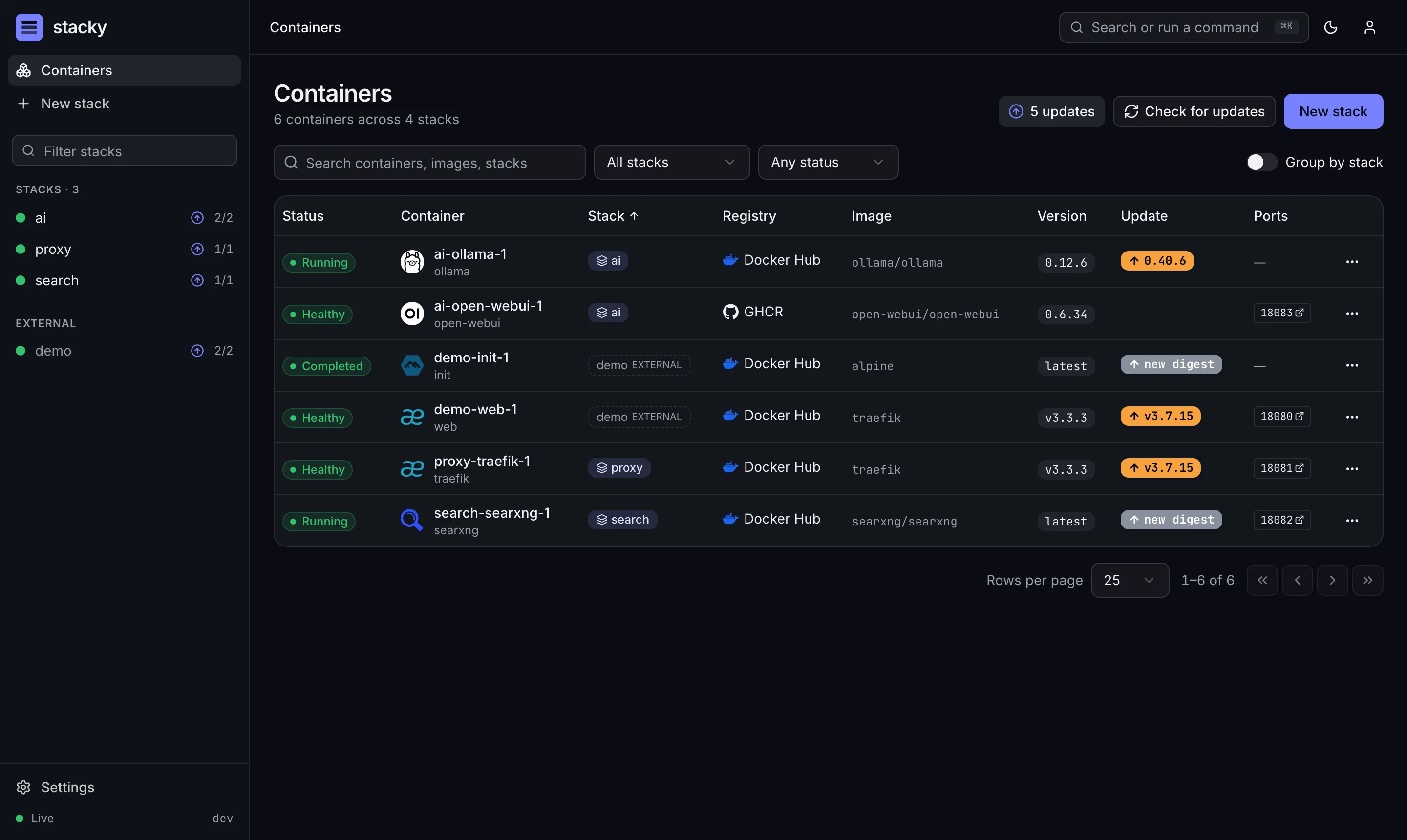
## Containers [Section titled “Containers”](#containers) The home page lists every container from every compose project on the host, much like [What’s Up Docker](https://github.com/getwud/wud): * **Status:** running, healthy, unhealthy, starting, restarting, paused, completed (one-shot jobs that finished), exited, created or error * **Container, stack and registry:** stacks outside the stacks directory are marked **external** * **Image and version:** the tag the container runs * **Update:** a badge for an available update, and how long ago the image was last checked. An arrow icon also marks the container’s name and, when grouped by stack, its stack’s heading * **Ports:** published ports as links that open the service (on the host you opened stacky from, or `STACKY_DOCKER_HOST` when stacky sits behind a reverse proxy on another hostname) * **Actions:** logs, a shell, restart, stop or start, and a check for updates of that one image ### Inspecting one container [Section titled “Inspecting one container”](#inspecting-one-container) Click a container (a table row, a card on a phone, or a service card on a stack page) to open its service’s definition from the compose file in a panel at the bottom. That is the quickest way to check one container’s settings without opening the whole file. **Logs** in the panel opens that service’s live logs on its stack page, and **Open in editor** opens the whole file. Turn on **Edit** to change it there. The edit is checked live against the whole compose file. **Save** writes it into the compose file, changing only that service’s lines, so comments and formatting elsewhere stay as they were. **Review & deploy** shows the change first, then saves and deploys the stack, just like the editor. If the compose file changed on disk while you were editing, stacky stops and offers to load the new version instead. Containers of external stacks and of stacky itself are view-only here. **Check for updates** looks for newer images now, and **Update all** applies every available update after you confirm. Its arrow menu has **Pull all updates**, which only downloads the newer images (see [Image updates](/guides/image-updates/)). Icons come from the [selfh.st icon set](https://selfh.st/icons/), matched by image name. Stacky shows its own logo for its container without any label. Stacky downloads each icon once and serves it from its own cache, so your browser never calls a CDN. To pick a different icon, add a `stacky.display.icon` label to the service. It takes the same values as What’s Up Docker’s `wud.display.icon`, which stacky also reads: | Value | Icon | | ----------------------------------------- | ------------------------------------------------------------------------------ | | `jellyfin` or `sh:jellyfin` | [selfh.st](https://selfh.st/icons/) (`selfhst:` works too) | | `hl:jellyfin` | [homarr-labs dashboard icons](https://dashboardicons.com) | | `si:jellyfin` | [Simple Icons](https://simpleicons.org) | | `mdi:docker` | [Material Design Icons](https://pictogrammers.com/library/mdi/) | | `fa:server`, `fas:`, `far:`, `fab:docker` | [Font Awesome](https://fontawesome.com/icons) solid, regular or brands | | `https://example.com/logo.svg` | Any PNG, SVG, WebP, JPEG, GIF or ICO URL (fetched once by stacky, then cached) |
```yaml
services:
jellyfin:
image: jellyfin/jellyfin
labels:
stacky.display.icon: https://example.com/jellyfin.svg
```
When several labels are set, `stacky.display.icon` wins over the older `dev.stacky.icon`, which wins over `wud.display.icon`. Single-color sets (Material Design, Font Awesome, Simple Icons) are inverted in dark mode. To check a container’s image for updates on its own schedule, add a `stacky.update.schedule` label (for example `weekly`, `6h` or a cron pattern). See [Image updates](/guides/image-updates/#per-container-schedules). To choose which version tags count as updates, add `stacky.tag.include` or `stacky.tag.exclude` regex labels. To link each version to its release notes, add a `stacky.link.template` label. Both read What’s Up Docker’s `wud.*` labels too. See [Choosing which tags count](/guides/image-updates/#choosing-which-tags-count) and [Release links](/guides/image-updates/#release-links). Containers are grouped under a heading per stack by default; turn **Group by stack** off for one flat, paginated list. Search, the stack and status filters, sorting, grouping and pagination are all stored in the URL, so you can bookmark a view. The buttons next to **Group by stack** switch between the table and cards. Stacky remembers the choice in your browser, and a `?view=table` or `?view=cards` link opens that view regardless. On a phone you always get cards, grouped the same way. ## Stack pages [Section titled “Stack pages”](#stack-pages) Each stack page has an action bar: * **Deploy:** `docker compose up -d`. The arrow menu adds options: pull images first, rebuild Dockerfile-based services (`--build`), or recreate every container. While the editor has unsaved changes, every one of these opens the review diff first, so you never deploy an older file by accident. * **Update:** applies the newer versions found by the update check, after a confirmation that lists them; the number on the button is how many there are (see [Image updates](/guides/image-updates/#applying-updates-to-a-whole-stack)). The button is disabled while none are known. The arrow menu stays available and has **Pull updates only** (download the newer images, change nothing) and **Re-pull current tags**. Re-pull pulls the tags in the compose file again and, if the stack is running, recreates changed containers and removes dangling images, even when newer versions are waiting. * **Restart**, **Stop** / **Start** * **More:** pull only, **Down** (remove containers, optionally named volumes), and **Delete** (removes the stack directory; you type the name to confirm) Not sure what an action does? The **?** button at the end of the action bar (also in the top bar, and **Help** in the command palette) opens a short explanation of every operation and the `docker compose` command behind it, with links back to these docs. Its **Labels & environment** tab lists every label and environment variable stacky understands, with a filter (also **Help: labels and environment variables** in the command palette). Every action streams its output in a drawer at the bottom of the screen. An action that covers several stacks, such as **Update all**, shows a tab for each stack. When it finishes, a notification tells you whether it worked. If it failed, you get a plain explanation and a suggested fix (see [Errors](/how-it-works/errors/)). The tabs: | Tab | What it does | | -------- | ------------------------------------------------------------------------------------------------------------------------------------------------------------------------------------------------------------------- | | Overview | The stack’s total CPU and memory with a one-minute trend, then service cards (or a table) with state, image, ports, live CPU and memory, and per-service actions (restart, stop, recreate, pull, check for updates) | | Editor | Edit `compose.yaml`, `.env` and any other file in the stack directory (create and delete files too) | | Logs | Live logs for the whole stack or one service, with search, history depth, timestamps and download | | Shell | An interactive shell in any running container (bash if available, otherwise sh) | | History | Every deployed version of the files (compare or restore one) and every operation with its full output | The buttons at the top of **Overview** switch the services between cards and a table. Like the containers page, the choice is remembered in your browser and `?view=` overrides it; phones always get cards. ## Rolling back [Section titled “Rolling back”](#rolling-back) Each successful deploy or update saves the compose file and `.env` it used, keeping the last 50 per stack. The **History** tab lists them. **Compare** shows a diff against the files on disk now. **Restore** validates the old files, writes them back and deploys them. **Clear history** removes the saved versions and the activity log of that stack after a confirmation. An operation that is still running is kept, and the files and containers are not touched. ## The editor [Section titled “The editor”](#the-editor) * **Schema-aware:** completion and hover documentation come from the official Compose specification. * **Validated as you type:** your unsaved text goes through `docker compose config` (with your `.env` and `global.env`), and problems are highlighted on the right line. * **Diff before deploy:** with unsaved changes, **Review & deploy** shows a side-by-side diff of what will change. Invalid files are never saved by a deploy. * **Deploy preview:** the review also dry-runs the deploy (`docker compose up --dry-run`) and lists which containers it will recreate, remove, create or start, and how many stay untouched. When the stack’s containers were created by another Docker Compose version (for example by Dockge), it explains why compose recreates them all once. See [Migrating from Dockge](/getting-started/migrating-from-dockge/#the-first-deploy-recreates-every-container). * **Your text is kept exactly:** comments, anchors, `!reset` and your formatting are never rewritten. * **Secrets are masked:** values in `.env` whose names look secret (`PASSWORD`, `TOKEN`, `KEY`, …) are hidden until you click **Reveal**. * **Shortcuts:** `⌘/Ctrl`+`S` saves; `⌘/Ctrl`+`Shift`+`D` deploys from inside the editor. ## File browser [Section titled “File browser”](#file-browser) **Files** in the sidebar (or the command palette) is a read-only view of two directories. The **Stacks directory** tab shows `STACKY_STACKS_DIR`, with every stack’s folder. The **Data directory** tab shows stacky’s own data (`/app/data` in the container), such as the database and the icon cache. Folders open as you expand them, and choosing a file shows it on the right: * **Text files** open in a read-only editor with syntax highlighting. Secret-looking values in `.env` files are masked until you click **Reveal**. * **Images** (PNG, JPEG, GIF, WebP, AVIF, SVG, ICO, BMP) are shown as pictures. * **Other files** show their size, for example *Binary data (176 KB)*. Text files over 1 MB are not shown either. Nothing can be changed from here; use a stack’s **Editor** tab to edit its files. Git internals (`.git`) and the session signing secret (`auth-secret`) are never shown, and paths cannot leave the two directories, symlinks included. ## Creating stacks [Section titled “Creating stacks”](#creating-stacks) **New stack** starts from a template, or converts a `docker run` command into a compose file. **Create & deploy** validates the file, creates the directory and starts it in one step. ## Command palette [Section titled “Command palette”](#command-palette) Press `⌘/Ctrl`+`K` anywhere to jump to a stack, or to deploy, update, restart, start or stop one. The stacky logo in the top left always takes you back to the containers page.
# AI agents & MCP
> Point Claude Code, Claude Desktop, Cursor and other AI agents at stacky with its built-in MCP server.
Stacky has a built-in [Model Context Protocol](https://modelcontextprotocol.io) (MCP) server. Connect an AI agent to it and the agent can inspect your stacks, read logs, edit compose files, deploy and update, all through the same checks the UI uses. Invalid compose files are rejected before they reach disk, every change runs as a regular [operation](/reference/api/#operations), and every change shows up in the activity log. ## Connect an agent [Section titled “Connect an agent”](#connect-an-agent) 1. Create an API token under **Settings → API tokens** (see [API tokens](/guides/authentication/#api-tokens)). Name it after the agent, e.g. `claude`, so the activity log shows who did what. When `STACKY_AUTH_DISABLED` is set, skip this step and leave out the header below. 2. Point your agent at **`https:///api/mcp`** with the header `Authorization: Bearer stk_…`. **Settings → AI agents and integrations** shows the exact URL for your instance. Right after you create a token, the token dialog shows the Claude Code command with that token filled in. ### Claude Code [Section titled “Claude Code”](#claude-code)
```sh
claude mcp add --transport http stacky https://stacky.example.com/api/mcp \
--header "Authorization: Bearer stk_…"
```
### Claude Desktop, Cursor and other clients [Section titled “Claude Desktop, Cursor and other clients”](#claude-desktop-cursor-and-other-clients) Clients that support remote (Streamable HTTP) servers take a URL and headers:
```json
{
"mcpServers": {
"stacky": {
"type": "http",
"url": "https://stacky.example.com/api/mcp",
"headers": { "Authorization": "Bearer stk_…" }
}
}
}
```
Clients that only run local (stdio) servers can bridge with [`mcp-remote`](https://www.npmjs.com/package/mcp-remote):
```json
{
"mcpServers": {
"stacky": {
"command": "npx",
"args": [
"-y",
"mcp-remote",
"https://stacky.example.com/api/mcp",
"--header",
"Authorization: Bearer ${STACKY_TOKEN}"
],
"env": { "STACKY_TOKEN": "stk_…" }
}
}
}
```
The server is stateless: every request is a self-contained JSON-RPC `POST`, so it works behind any reverse proxy without sticky sessions or long-lived streams. ## Tools [Section titled “Tools”](#tools) Read-only tools are marked as such, so clients can run them without asking you each time. Tools that change things are marked as changes, and the ones that can remove things are marked as destructive. | Tool | What it does | | --------------------- | -------------------------------------------------------------------------------------------------- | | `list_stacks` | Every stack with its status, services and containers | | `get_stack` | One stack in full, plus its `compose.yaml` and `.env` text | | `list_containers` | Containers across all stacks (or one), with state, image and ports | | `get_logs` | Recent log lines of a stack or one service | | `list_operations` | Recent operations, newest first | | `get_operation` | An operation with the tail of its output; can wait for it to finish | | `list_image_updates` | Images with a newer tag or digest, from the last [update check](/guides/image-updates/) | | `get_system_info` | Stacky, Docker and compose versions, and preflight checks | | `validate_compose` | Checks compose text with `docker compose config` without saving it | | `create_stack` | Creates a stack from compose text (validated), optionally deploying it | | `update_stack_files` | Replaces `compose.yaml` and/or `.env` (validated), optionally deploying | | `stack_action` | `deploy`, `start`, `stop`, `restart`, `down`, `pull`, `update`, `pull-updates` or `deploy-updates` | | `service_action` | `start`, `stop`, `restart`, `recreate`, `pull` or `update` one service | | `delete_stack` | Stops a stack and deletes its directory (destructive) | | `cancel_operation` | Cancels a queued or running operation | | `check_image_updates` | Starts an image update check in the background | Action tools wait for their operation (60 seconds by default, `waitSeconds` up to 600) and return the result with the end of its output. A failed operation includes the same error code, message and hint the UI shows, e.g. which container already holds a port. If an operation is still running when the wait ends, the agent can keep waiting with `get_operation`. Stacky’s own settings, git sync, self-update, container shells and API tokens are not exposed over MCP. ## What gets recorded [Section titled “What gets recorded”](#what-gets-recorded) Each tool call that changes something is written to **Settings → Activity log** as `MCP /api/mcp//`, credited to the token (`token:claude`), with the result status. Read-only calls are not logged. ## Safety [Section titled “Safety”](#safety) An API token can do everything the admin can (except manage tokens), and that includes deleting stacks. Some tips: * Use a separate token per agent, and revoke it when you no longer use the agent. * Let your client ask before running tools marked destructive (`stack_action`, `delete_stack`). * Acting on the stack that runs stacky itself restarts stacky, just like in the UI. The connection drops until stacky is back. ## llms.txt [Section titled “llms.txt”](#llmstxt) For agents that should learn about stacky itself, the docs are published in the [llms.txt](https://llmstxt.org) format: * [`/llms.txt`](https://stacky.lgtm.page/llms.txt): an index of the documentation * [`/llms-full.txt`](https://stacky.lgtm.page/llms-full.txt): the complete docs as one file * [`/llms-small.txt`](https://stacky.lgtm.page/llms-small.txt): a condensed version for small context windows The GitHub repository has its own [`llms.txt`](https://github.com/patsissons/stacky/blob/main/llms.txt) describing the source layout.
# Sign-in and security
> Local login, two-factor authentication, single sign-on (OIDC), API tokens and the activity log.
Stacky has one admin account, created on the first visit (or seeded with `STACKY_ADMIN_USER` and `STACKY_ADMIN_PASSWORD`). Sessions last 30 days. Repeated failed sign-ins are rate limited. ## Two-factor authentication [Section titled “Two-factor authentication”](#two-factor-authentication) Under **Settings → Two-factor authentication**: 1. Confirm your password, then scan the QR code with any authenticator app (1Password, Bitwarden, Aegis, Google Authenticator…). 2. Store the backup codes somewhere safe. Each one works once if you lose your device. 3. Enter the 6-digit code to turn two-factor authentication on. When you sign in, you can choose to trust the device for 30 days. ## Single sign-on (OIDC) [Section titled “Single sign-on (OIDC)”](#single-sign-on-oidc) Stacky can sign you in through any OpenID Connect provider. Create a client in your provider with this redirect URI:
```plaintext
https:///api/auth/oauth2/callback/oidc
```
Then configure stacky:
```yaml
environment:
STACKY_BASE_URL: https://stacky.example.com # needed so the redirect URI is right behind a proxy
STACKY_OIDC_ISSUER: https://auth.example.com/application/o/stacky/
STACKY_OIDC_CLIENT_ID: stacky
STACKY_OIDC_CLIENT_SECRET: ${OIDC_SECRET}
STACKY_OIDC_NAME: Authentik # button label
# optional
STACKY_OIDC_ALLOWED_GROUPS: homelab-admins # only these groups (from the `groups` claim) may sign in
STACKY_OIDC_AUTO_REDIRECT: 'true' # skip the login form; /login?local=1 still shows it
```
| Provider | Issuer example | Notes | | --------- | ---------------------------------------------------- | -------------------------------------------------------------------------- | | Authentik | `https://auth.example.com/application/o//` | Add the `groups` scope mapping if you use `STACKY_OIDC_ALLOWED_GROUPS` | | Authelia | `https://auth.example.com` | Add `groups` to the client’s scopes and set `STACKY_OIDC_SCOPES` | | Pocket ID | `https://id.example.com` | Groups are sent in the `groups` claim when the `groups` scope is requested | | Keycloak | `https://kc.example.com/realms/` | Add a group mapper to the client | To request groups, add the scope: `STACKY_OIDC_SCOPES: openid profile email groups`. The local admin password keeps working alongside SSO, so you can’t lock yourself out. ## API tokens [Section titled “API tokens”](#api-tokens) **Settings → API tokens** creates long-lived tokens for scripts and integrations. A token is shown only once; stacky stores just a hash of it.
```sh
curl -H "Authorization: Bearer stk_…" https://stacky.example.com/api/stacks
curl -X POST -H "Authorization: Bearer stk_…" https://stacky.example.com/api/stacks/media/actions/update
```
A token can do everything the admin can, except create or revoke tokens. The [REST API reference](/reference/api/) covers the endpoints, the OpenAPI document and how to wait for operations. To connect an AI agent, see [AI agents & MCP](/guides/agents/). ## Activity log [Section titled “Activity log”](#activity-log) **Settings → Activity log** lists every change made through stacky: who made it (the admin, or `token:`), the request, and whether it succeeded. Entries are kept for 90 days. ## Running behind an authenticating proxy [Section titled “Running behind an authenticating proxy”](#running-behind-an-authenticating-proxy) If a proxy such as Authelia or Authentik already handles authentication, you can set `STACKY_AUTH_DISABLED=true` to turn off stacky’s own login. Only do this if nothing can reach stacky without going through the proxy. Stacky shows a warning banner while auth is disabled; you can dismiss it, and it stays hidden in that browser.
# Git-backed stacks
> Version your stacks directory in git, back it up to a remote, or deploy from git (GitOps).
Under **Settings → Git**, stacky can keep the stacks directory in a git repository. Three levels build on each other: ## 1. Local history [Section titled “1. Local history”](#1-local-history) Turn on **Track stacks in git**. Stacky runs `git init` in the stacks directory (or uses the repository that is already there) and commits the compose files. From then on, every change made in stacky is a commit: saving, creating or deleting a stack, version bumps from the update dialog, and edits to other files. * Only compose files and files you edit in stacky are committed. Data directories inside your stacks are never added. * `.env` files and `global.env` usually contain secrets, so they are left out unless you turn on **Also commit .env files**. * Stacky commits only the paths it changed, so anything you stage by hand is left alone. ## 2. Backup to a remote (push) [Section titled “2. Backup to a remote (push)”](#2-backup-to-a-remote-push) Add a remote and turn on **Push every commit**: * **HTTPS:** add a personal access token with write access to the repository. The token is stored in stacky’s database and sent as an HTTP header; it’s never written into `.git/config`. * **SSH:** use a `git@…` URL and mount a deploy key into the container:
```yaml
volumes:
- ./ssh:/root/.ssh:ro # id_ed25519 + known_hosts
```
## 3. Deploy from git (GitOps) [Section titled “3. Deploy from git (GitOps)”](#3-deploy-from-git-gitops) Turn on **Pull from the remote**. Stacky fetches the branch every few minutes, fast-forwards the stacks directory, and (with **Deploy stacks whose files changed**) redeploys every stack whose files changed. This includes stacky itself, through the [self-update](/guides/self-update/) flow. To deploy as soon as you push, add the **webhook URL** shown in the settings as a push webhook in GitHub, Gitea, Forgejo or GitLab. The secret part of the URL is the credential; you can regenerate it any time. You can start with an empty stacks directory: the first pull checks out the repository. ### When local and remote disagree [Section titled “When local and remote disagree”](#when-local-and-remote-disagree) Stacky only fast-forwards. If stacks were changed in stacky (and committed) but not pushed, or someone edited files on the host, the pull stops with an explanation instead of merging or overwriting anything. Push the local commits, or reset the stacks directory to the remote, then pull again.
# Image updates
> How stacky finds newer images, and how What's Up Docker fits in.
Stacky checks the image of every running container for two kinds of update: * **A new image for the same tag.** For example, `nginx:latest` or `postgres:17` was rebuilt. Stacky compares the registry’s manifest digest with the digest of the image you’re running. * **A newer version tag.** For example, `traefik:v3.3.3` when `v3.7.15` exists. Only tags with the same *shape* are compared, so `1.27-alpine` is only compared with other `#.#-alpine` tags and never jumps to a `-debian` variant. ## Reading the badges [Section titled “Reading the badges”](#reading-the-badges) The **Update** column on the Containers page (and each service card) shows a badge, colored like What’s Up Docker’s: | Badge | Meaning | | ----- | ------------------------------------------------------- | | Red | Major version (`1.x` → `2.0`) | | Amber | Minor version (`3.3` → `3.7`) | | Green | Patch (`3.24.1` → `3.24.2`) | | Blue | New build or release number (`v2.8.3-ls364` → `-ls367`) | | Gray | New image for the same tag (“new digest”) | On the Containers page, an arrow-in-a-circle icon also marks each container with an update. With **Group by stack** on, it marks the stack’s heading too, even when a filter hides the container that has the update. An ignored update gets no icon. Click a badge to see the details: * **Pull \:** pulls the rebuilt image and recreates the service. * **Update to \:** changes only the service’s `image:` line in your compose file (comments and formatting stay), then pulls and recreates it. If the image comes from a variable such as `${TAG}`, stacky asks you to change the variable instead. * **Ignore this update:** hides this specific version or digest. The next newer one shows up again. An ignored update stays visible as a dashed, greyed badge; open it and choose **Stop ignoring** to bring it back. Use **Updates available** in the status filter, or the **N updates** button, to list everything with an update. ## Applying updates to a whole stack [Section titled “Applying updates to a whole stack”](#applying-updates-to-a-whole-stack) The **Update** button on a stack page uses the results of the check. When the stack has updates, the button shows how many and opens a confirmation that lists each change by service; confirming does, for the services with an update: 1. writes each newer tag into the service’s `image:` line (comments and formatting stay), 2. pulls and recreates those services, and 3. removes dangling images. It is recorded in the stack’s history like a deploy. A service is left out (and the operation output says why) when its update is ignored, when its image comes from a variable such as `${TAG}`, or when its `image:` line changed after the check ran. When no update is known, the **Update** button is disabled. **Re-pull current tags** in its arrow menu still pulls the tags already in the compose file. That helps for moving tags like `latest`, but does nothing for a pinned version such as `nginx:1.27.3`, which is exactly what the check is for. A stopped stack stays stopped. The arrow next to **Update** is always available and has three more options: * **Check for updates:** checks this stack’s images now, without waiting for the schedule. A notification reports what it found, and the **Update** button picks up any new results. * **Pull updates only:** downloads the newer images ahead of time (`docker pull :`, and `docker compose pull` for services with only a new digest). The compose file and the running containers are left alone, so nothing changes yet. * **Re-pull current tags:** the plain pull of the current tags, for when you want the newest build of your current tags without applying the newer versions. **Update all** on the containers page runs the same thing for every stack with an update, after one confirmation that lists each change by stack and service. Its arrow menu has **Pull all updates**, which runs **Pull updates only** for every stack instead. Either way each stack runs as one operation, and the output drawer shows a tab for each stack so you can follow every log. Ignored updates, external stacks and stacky itself are left out; update stacky from its own stack page. ## When checks run [Section titled “When checks run”](#when-checks-run) Images are checked a minute after stacky starts if they’ve never been checked, then on a schedule. They’re also checked whenever you click **Check for updates**, after you deploy or update a stack, and whenever one of their containers was recreated since the last check. Stacky keeps its own image and its release banner in step: when a new stacky release comes out, it checks its own image right away, then every 15 minutes until the badge shows that release (the image reaches the registry a little after the release), even if that image’s schedule is `never` or the badge already shows an older update. When a newer stacky image turns up than the release in the banner, stacky looks for the release right away so the banner catches up with the badge. To check a single stack, use **Check for updates** in the arrow menu next to its **Update** button; external stacks and stacky’s own stack page show a **Check for updates** button instead. To check a single image, use **Check for updates** in that container’s menu (on the containers page or a service card), or the telescope button in the update dialog. Either way, a notification reports the result. Every container on the containers page, and every service on a stack page, shows how long ago its image was last checked (for example *checked 3h ago*; hover for the exact time). Images that are never checked, such as local builds, show nothing; *not checked yet* means the first check hasn’t run. ### The global schedule [Section titled “The global schedule”](#the-global-schedule) Set how often images are checked under **Settings → Image update checks**. The default is every 6 hours; set `STACKY_UPDATE_SCHEDULE` to change the default (the older `STACKY_UPDATE_INTERVAL`, in hours, still works). The Settings card shows when the next check is due. | Schedule | Checks | | ----------------------- | --------------------------------------------------------------------- | | `hourly` | At the top of every hour | | `daily` or `nightly` | Every day at 3 AM | | `weekly` | Every Sunday at 3 AM | | `monthly` | On the 1st of every month at 3 AM | | `30m`, `6h`, `2d`, `1w` | That long after the image was last checked (5 minutes at least) | | A cron pattern | Whenever the pattern matches, e.g. `0 4 * * 1-5` for 4 AM on weekdays | | `never` (or `off`, `0`) | Only when you ask, or after a deploy | Times use stacky’s time zone; set `TZ` on the stacky container (e.g. `TZ: Europe/Berlin`) to change it. The presets and intervals start up to five minutes late, so many stacky instances don’t all hit registries at the same moment; cron patterns run on time. If stacky was down when a check was due, the check runs right after it starts. ### Per-container schedules [Section titled “Per-container schedules”](#per-container-schedules) Give a service a `stacky.update.schedule` label to check its image on its own schedule, using any value from the table above:
```yaml
services:
postgres:
image: postgres:17.6
labels:
stacky.update.schedule: weekly
traefik:
image: traefik:v3.5
labels:
stacky.update.schedule: '0 */2 * * *'
my-app:
image: ghcr.io/me/my-app:latest
labels:
stacky.update.schedule: never
```
Containers without the label use the global schedule. Updates are tracked per image, so when several containers run the same image with different schedules, the soonest one wins. An invalid label is ignored in favour of the global schedule, and the update dialog says why. Labels apply once the container has been recreated (deploy the stack). ## Choosing which tags count [Section titled “Choosing which tags count”](#choosing-which-tags-count) The shape rule handles most images. To narrow the candidates further, give a service a `stacky.tag.include` label, a `stacky.tag.exclude` label, or both. Each takes a JavaScript regular expression. A tag counts as a newer version only if it has the same shape as the one you run, matches the include pattern and doesn’t match the exclude pattern. The filters narrow the shape rule rather than replace it, so a loose pattern still can’t jump to another variant.
```yaml
services:
nginx:
image: nginx:1.26.3
labels:
# stay on 1.26.x
stacky.tag.include: '^1\.26\.'
postgres:
image: postgres:17.6
labels:
# skip the next major version
stacky.tag.exclude: '^18\.'
```
Compose treats `$` as the start of a variable, so a pattern that ends with `$` has to write it as `$$` (for example `'^\d+\.\d+$$'`). Stacky also reads What’s Up Docker’s `wud.tag.include` and `wud.tag.exclude`, so services already labelled for WUD keep their filters. If both are set, the `stacky.*` label wins. When several containers run the same image, they have to agree: if they set different filters, the label is ignored and the update dialog says why, as it does for an invalid pattern. Changing a filter (and recreating the container) makes the image due for a check right away, so the result never reflects an old filter. ## Release links [Section titled “Release links”](#release-links) A `stacky.link.template` label turns each version into a link to its release notes. The update dialog links both tags and shows a **Release notes** link next to the registry’s tags page; update notifications and the API include the newer version’s link too.
```yaml
services:
nginx:
image: nginx:1.26.3
labels:
stacky.link.template: https://github.com/nginx/nginx/releases/tag/release-$${major}.$${minor}.$${patch}
```
Write `$${major}` rather than `${major}` in a compose file; otherwise Compose replaces it with an environment variable before stacky sees it. The template uses What’s Up Docker’s variables, filled in from the tag (here `v2.8.3-ls364`): | Variable | Value | | ------------------------- | --------------------------------------------------------- | | `${original}` or `${raw}` | The whole tag: `v2.8.3-ls364` | | `${transformed}` | The same as `${original}` (stacky doesn’t transform tags) | | `${major}` | The first number: `2` | | `${minor}` | The second number: `8` (`0` if there isn’t one) | | `${patch}` | The third number: `3` (`0` if there isn’t one) | | `${prerelease}` | Whatever follows the first `-` after the numbers: `ls364` | Stacky also reads `wud.link.template`, and `stacky.link.template` wins if both are set. The template is only filled in, never run as code, and must give an `http(s)` URL. A tag without numbers, such as `latest`, gets no link from a template that uses `${major}`. An unknown variable, or containers of one image with different templates, give no links, and the update dialog says why. ## Rate limits [Section titled “Rate limits”](#rate-limits) Stacky only sends `HEAD` requests for manifests, which Docker Hub doesn’t count toward its pull limit. Tag lists are fetched only for version tags. If a registry still rate-limits stacky, the badge shows **check failed** with the reason instead of a misleading “up to date”. ## Private registries [Section titled “Private registries”](#private-registries) Mount a Docker `config.json` that contains `auths` entries (as written by `docker login`) into the container:
```yaml
volumes:
- /root/.docker/config.json:/root/.docker/config.json:ro
```
Credential helpers (`credsStore`) aren’t supported. Use `docker login` with a config file that stores the auth inline. Or set the credentials with environment variables on the stacky container, using What’s Up Docker’s naming: `STACKY_REGISTRY___`, where `` is any label you like (it can be left out). Stacky also reads WUD’s own `WUD_REGISTRY_*` variables unchanged, so you can copy them over as they are.
```yaml
environment:
# LinuxServer images (lscr.io): a GitHub username and a token with read:packages
STACKY_REGISTRY_LSCR_PRIVATE_USERNAME: me
STACKY_REGISTRY_LSCR_PRIVATE_TOKEN: ghp_...
```
| Provider | Registry | Keys | | ---------------------------- | --------------------------------------------- | --------------------------------------------------------------------- | | `HUB` | Docker Hub | `LOGIN` (or `USERNAME`), and `PASSWORD` or `TOKEN` | | `GHCR` | ghcr.io | `USERNAME`, `TOKEN` | | `LSCR` | lscr.io | `USERNAME`, `TOKEN` (a GitHub token, since lscr.io is served by ghcr) | | `QUAY` | quay.io | `NAMESPACE` and `ACCOUNT` (a robot account), `TOKEN` | | `GITLAB` | registry.gitlab.com, or `URL` | `TOKEN`, optionally `USERNAME` | | `CUSTOM`, `GITEA`, `FORGEJO` | the host in `URL` (e.g. `registry.home:5000`) | `URL`, `LOGIN` (or `USERNAME`), and `PASSWORD` or `TOKEN` | Any provider also takes `AUTH`, a ready-made base64 `user:password`, in place of the username and secret. Variables win over a mounted `config.json` for the same registry, and `STACKY_` variables win over `WUD_` ones. Cloud registries that use cloud credentials (ECR, GCR, ACR) aren’t supported; stacky logs a warning (naming the variables, never their values) and checks those images anonymously. ## What’s Up Docker [Section titled “What’s Up Docker”](#whats-up-docker) You don’t need [What’s Up Docker](https://getwud.app) (WUD) alongside stacky. Stacky checks for updates itself, and [notifications](/guides/notifications/) tell you about new ones on Pushover, ntfy, Gotify, Discord, Apprise or a webhook. WUD is still useful for images stacky can’t check itself, such as a private registry it has no credentials for. To use it as a fallback, add WUD’s URL and a personal API token (WUD → My Profile) under **Settings → What’s Up Docker**. Stacky asks WUD to re-check, then uses WUD’s answer for any image its own check couldn’t handle. Results that came from WUD are marked in the update dialog. If you keep WUD, leave its `dockercompose` trigger off and apply updates from stacky. Stacky also picks up changes WUD makes to compose files on disk.
# Notifications
> Get notified when deploys fail, updates appear or containers stay unhealthy.
Add channels under **Settings → Notifications**. Each channel picks the events it wants: | Event | Sent when | | --------------------------- | ------------------------------------------------------------------------------------------- | | A deploy or operation fails | Any operation fails; the message includes the explained error and the suggested fix | | New image updates are found | An update check finds updates you haven’t been told about yet (once per new version) | | A container stays unhealthy | A container is unhealthy, crashing or restarting for more than a minute (once per incident) | | stacky updates itself | A self-update finishes, or is rolled back | ## Channel types [Section titled “Channel types”](#channel-types) | Type | URL | Token | | ----------- | ----------------------------------------------------- | --------------------- | | ntfy | The full topic URL, e.g. `https://ntfy.sh/my-topic` | Optional access token | | Gotify | Your Gotify server, e.g. `https://gotify.example.com` | The application token | | Pushover | — (always `api.pushover.net`) | The application token | | Discord | A channel webhook URL | — | | Apprise API | The notify endpoint of an Apprise API container | Optional bearer token | | Webhook | Any URL; receives a JSON body | Optional bearer token | ### Pushover [Section titled “Pushover”](#pushover) 1. Sign in at [pushover.net](https://pushover.net) and copy **Your User Key** (or a group key, to notify several people). 2. Under **Your Applications**, choose **Create an Application/API Token**, name it `stacky`, and copy its API token. 3. In stacky, add a **Pushover** channel and paste the API token and the user key. Failures are sent with high priority, so they come through during quiet hours; everything else uses normal priority. ## Choosing what notifies [Section titled “Choosing what notifies”](#choosing-what-notifies) Each channel picks the events it receives. On top of that, stacky decides which stacks and containers send failures, image updates and unhealthy-container alerts. Self-update results only depend on the channel. **Send by default** under **Settings → Notifications** has a switch for each of the three events. All of them are on until you turn them off. Labels override a default for a whole stack or a single container. Each label takes `true` or `false` (`on`/`off`, `yes`/`no` and `1`/`0` work too) and names the event by a short alias: | Event | Alias | Container label | Stack label (on stacky’s own service) | | --------------------------- | ----------- | ------------------------- | --------------------------------------- | | A deploy or operation fails | `failures` | — | `stacky.notify.stack..failures` | | New image updates are found | `updates` | `stacky.notify.updates` | `stacky.notify.stack..updates` | | A container stays unhealthy | `unhealthy` | `stacky.notify.unhealthy` | `stacky.notify.stack..unhealthy` | | Every event above | — | `stacky.notify` | `stacky.notify.stack.` | Stacky picks the most specific setting for each event: 1. The container’s label for that event, e.g. `stacky.notify.updates`. 2. The container’s `stacky.notify` label. 3. The stack’s label for that event on stacky, e.g. `stacky.notify.stack.media.updates`. 4. The stack’s `stacky.notify.stack.` label on stacky. 5. The event’s default under **Send by default**. Operations act on a whole stack, so failures skip the container labels and only follow steps 3–5. For example, to hear about every failure and unhealthy container but only a few image updates, turn off **New image updates are found** under **Send by default**, then opt in the containers you care about:
```yaml
# the media stack
services:
plex:
image: plexinc/pms-docker
labels:
stacky.notify.updates: true # updates for Plex only
```
To quiet a whole stack except for one event, label stacky’s own service:
```yaml
# stacky's own compose file
services:
stacky:
image: ghcr.io/patsissons/stacky:latest
labels:
stacky.notify.stack.sandbox: false # nothing from the sandbox stack...
stacky.notify.stack.sandbox.failures: true # ...except failed deploys
```
An image update is reported if any container running that image sends updates. Updates you weren’t told about because notifications were off are reported once you turn them back on. Labels on stacky apply once stacky is redeployed, and the Settings card lists the stack overrides it found. An invalid value or an unknown event is ignored (with a warning in stacky’s log), and the next setting down applies. ## What a message says [Section titled “What a message says”](#what-a-message-says) Every message names the stacky that sent it, and the stack it’s about when there is one, for example `Host: nas · Stack: media` under the text (in the footer of a Discord embed, and as `host` and `stack` fields for webhooks). That tells instances apart when several share a channel. The host name is [`STACKY_DISPLAY_NAME`](/reference/configuration/) when it’s set. Otherwise stacky uses the Docker engine’s host name (from `docker info`), which is the machine’s name even though stacky runs in a container. Docker Desktop and OrbStack run the engine in a VM, so there the name is the VM’s (`docker-desktop` or `orbstack`) and you’ll want to set `STACKY_DISPLAY_NAME`. If the engine can’t be asked, it falls back to the container’s own hostname. Image update messages name the stack when every image in them belongs to one stack; when they span several, each line lists the stacks that run that image. ## Links back to stacky [Section titled “Links back to stacky”](#links-back-to-stacky) When [`STACKY_BASE_URL`](/reference/configuration/) is set, each message links to the stack it’s about (or to the containers page for image updates and self-updates). The link shows up as **Open in stacky** in Pushover, opens when you tap an ntfy or Gotify notification, and is the title link of a Discord embed. ## Webhooks [Section titled “Webhooks”](#webhooks) Generic webhooks receive:
```json
{
"event": "operation_failed",
"title": "deploy media failed",
"body": "Port 8096 is already in use\n\nContainer \"jellyfin\" (stack \"old-media\") already publishes port 8096 ...",
"level": "error",
"stack": "media",
"host": "nas",
"url": "https://stacky.example.com/stacks/media",
"source": "stacky",
"timestamp": "2026-10-18T21:30:00.000Z"
}
```
`url` is only included when `STACKY_BASE_URL` is set, and `stack` only when the event is about one stack. Use **Send test** to check a channel before saving it. If the service rejects the message, the error it gave (such as an invalid Pushover user key) is shown. Tokens are stored in stacky’s database and are never sent back to the browser.
# Updating stacky itself
> How stacky updates, redeploys and restarts its own container, and how it rolls back.
Stacky can manage the stack it runs in. Open that stack (marked **SELF** in the sidebar), or use the update banner that appears when a new release is out: | Action | What happens | | ------------ | ------------------------------------------------------------------------------------ | | **Update** | Pulls the newest image for your tag and replaces stacky with it | | **Redeploy** | Applies your edits to stacky’s compose file, e.g. a new environment variable or port | | **Restart** | Recreates stacky’s container with the same configuration | **Update** is disabled while there’s nothing to update to: no newer release, and no new image behind your tag found by the [image update check](/guides/image-updates/). Use **Check for updates** on the containers page to look again. The version shown at the bottom of the sidebar and under **Settings → System** links to that release’s notes on GitHub (development builds show plain text). **Stop**, **Down** and **Delete** aren’t offered for stacky’s own stack, because they would leave you without the UI. Do those on the host with `docker compose`. ## How it works [Section titled “How it works”](#how-it-works) A process can’t replace the container it’s running in: the moment `docker compose` stops the old container, the command doing the work is killed with it. That’s why Dockge’s update button leaves it stopped. Stacky hands the swap to a separate, short-lived container instead: 1. **Pull, while stacky keeps running.** The pull streams in the UI like any other operation. If the image hasn’t changed, stacky stops here and tells you it’s already up to date. 2. **Record the job.** Stacky writes the job to its data directory. The job holds the current image, the target, and the compose files as they were the last time stacky started successfully. 3. **Start the updater.** Stacky starts a `stacky-updater-…` container from its *current*, known-good image. It mounts the Docker socket, the data directory and the stacks directory at the same paths as stacky itself. 4. **Replace stacky.** The updater runs `docker compose up --detach --no-deps --force-recreate --wait` for stacky’s service only, in stacky’s original compose project. `--wait` blocks until the new container passes its health check. 5. **Roll back on failure.** If the new version doesn’t become healthy, the updater restores the compose files and points the image tag back at the old image. It then starts the previous version again and records **rolled back** with the error. 6. **Confirm.** The new instance reads the job when it starts, marks it **succeeded**, and removes finished updater containers. The page reloads into the new version on its own. ## Pinned tags and moving tags [Section titled “Pinned tags and moving tags”](#pinned-tags-and-moving-tags) * **Moving tag** (`latest`, `edge`, `1`): **Update** pulls the same tag again. * **Pinned release** (`0.3.1`): **Update to 0.4.0** rewrites only the `image:` line in your compose file, then pulls. Your comments and formatting are kept. ## Requirements [Section titled “Requirements”](#requirements) Self-update is available when stacky was started with `docker compose`, with: * the Docker socket mounted read-write * the stacks directory mounted at the same path as on the host * the compose file in the stacks directory, as in the [install guide](/getting-started/install/) The **System** section in Settings tells you whether self-update is available, and why not if it isn’t. ## Troubleshooting [Section titled “Troubleshooting”](#troubleshooting) * **Inspecting the updater:** it logs to `docker logs stacky-updater-` and is kept until the next successful start. * **Job records:** stored in the data directory under `self-update/`. * **Turning off release checks:** stacky looks up the latest release on GitHub every hour, and right away when the image check finds a stacky image newer than the release it knows about. Set `STACKY_UPDATE_CHECK=false` to disable this.
# Errors
> How stacky turns docker compose failures into actionable messages.
When a `docker compose` command fails, stacky reads its output and matches it against known failures. Instead of only an exit code, you get a short explanation and a suggested fix. The full output is always one click away. | Code | Example message | Suggested fix | | ------------------------- | ------------------------------------------------- | ------------------------------------------------------------- | | `port_in_use` | Port 8080 is already in use | Names the container that holds the port, if stacky manages it | | `registry_rate_limited` | The registry rate limit was reached | Wait, or `docker login` on the host | | `image_access_denied` | Access to image “org/private” was denied | Check the name, or log in to the registry | | `image_not_found` | Image “nginx:9.99” was not found | Check the image name and tag | | `env_missing_variable` | Required variable DB_PASSWORD has no value | Set it in `.env` or `global.env` | | `env_interpolation` | Invalid variable substitution in services.web… | Use `${VAR}` or escape `$` as `$$` | | `env_file_missing` | Env file ./app.env does not exist | Create it or remove it from `env_file` | | `compose_yaml` | The compose file is not valid YAML (line 4) | Fix the highlighted line | | `compose_invalid` | additional properties ‘imagee’ not allowed | Check the key against the Compose specification | | `network_not_found` | External network proxy does not exist | `docker network create proxy` | | `volume_not_found` | External volume data does not exist | `docker volume create data` | | `container_name_conflict` | A container named “postgres” already exists | Rename or remove one of them | | `dependency_failed` | Dependency app-db-1 is unhealthy | Check that service’s logs | | `build_failed` | Image build failed | Find the failing step in the output | | `disk_full` | The host is out of disk space | Free space, e.g. `docker system prune` | | `docker_api_version` | The Docker CLI and engine disagree on API version | Upgrade the engine | | `docker_unavailable` | Stacky cannot reach the Docker engine | Mount `/var/run/docker.sock` | Anything else is reported as `command_failed`, using the last line of the output as the message. Validation (before saving or deploying) uses the same tools. YAML syntax errors and `docker compose config` errors are mapped back to the line in your file, and a deploy with an invalid file is rejected before anything is written to disk.
# Overview
> How stacky discovers stacks, computes status and runs operations.
## Compose files are the source of truth [Section titled “Compose files are the source of truth”](#compose-files-are-the-source-of-truth) Stacky never keeps a private copy of your stacks. A stack is a directory in the stacks directory that contains a compose file. When you edit a stack in the UI, stacky writes your **exact text** back to disk. It never re-serializes the YAML from a parsed model, so comments, anchors, custom tags like `!reset`, and your formatting survive untouched. Edits made outside stacky (in vim, through git, or by another tool) are picked up automatically by a file watcher. ## Status from the Docker engine [Section titled “Status from the Docker engine”](#status-from-the-docker-engine) Stacky reads container state directly from the Docker engine and listens to its event stream, grouping containers by the labels compose puts on them. Each service gets a precise status: | Status | Meaning | | ----------- | -------------------------------------------------------------------- | | running | Container is up; **healthy** when it has a healthcheck that passes | | unhealthy | Container is up but its healthcheck is failing | | starting | Container is up but its healthcheck has not passed yet | | completed | A one-shot container (restart `no`/`on-failure`) exited successfully | | exited | Container stopped with an error, or was stopped | | not created | Service is defined in the compose file but has no container | A one-shot init container that finished successfully does **not** make its stack look broken. ## Operations [Section titled “Operations”](#operations) Deploy, update, stop, restart and the other actions run the real `docker compose` CLI, one operation per stack at a time. Output streams live to the browser, and every operation is recorded in a history. If an operation fails, stacky classifies the error (port already in use, image not found, invalid variable, and so on) and tells you how to fix it.
# REST API
> Drive stacky from scripts, dashboards and other apps with the token-authenticated REST API.
Everything the stacky UI does goes through a JSON API under `/api`. Scripts, Home Assistant automations, CI jobs and other apps can use the same API with an API token. AI agents can use the [MCP server](/guides/agents/) instead. ## Authentication [Section titled “Authentication”](#authentication) Create a token under **Settings → API tokens** (see [Sign-in and security](/guides/authentication/#api-tokens)) and send it as a bearer token:
```sh
export STACKY=https://stacky.example.com
export STACKY_TOKEN=stk_…
curl -H "Authorization: Bearer $STACKY_TOKEN" $STACKY/api/stacks
```
A token can do everything the admin can, except create or revoke tokens. Every change is recorded in the activity log as `token:`. When `STACKY_AUTH_DISABLED` is set, no token is needed. ## OpenAPI document [Section titled “OpenAPI document”](#openapi-document) Every instance serves an OpenAPI 3.1 description of the public API at **`/api/openapi.json`**. No token is needed to read it. Load it into Swagger UI, Postman or Insomnia, or use it to generate a client:
```sh
curl $STACKY/api/openapi.json
```
The document covers stacks, operations, logs, containers, image updates and system information. Endpoints used only by the UI (settings, sign-in, git sync and the file browser) are left out and may change between releases. ## Operations [Section titled “Operations”](#operations) Anything that runs `docker compose` is an **operation**. Action endpoints queue one and return `202 Accepted` with its summary right away:
```json
{
"id": "op_…",
"stack": "media",
"action": "update",
"state": "queued",
"commands": ["…"],
"createdAt": 1760000000000
}
```
An operation moves through `queued → running → succeeded | failed | cancelled`. Operations on the same stack run one at a time, in order. To wait for the result, long-poll the operation with `?wait=` (up to 300). The request returns as soon as the operation finishes, together with its output:
```sh
op=$(curl -s -X POST -H "Authorization: Bearer $STACKY_TOKEN" \
$STACKY/api/stacks/media/actions/update | jq -r .id)
curl -s -H "Authorization: Bearer $STACKY_TOKEN" "$STACKY/api/operations/$op?wait=120" | jq '{state, error}'
```
A failed operation includes an `error` with a `code`, a `message` and usually a `hint`, the same explanation the UI shows (see [Errors](/how-it-works/errors/)). ## Common recipes [Section titled “Common recipes”](#common-recipes) | Task | Request | | --------------------------------------- | ------------------------------------------------------------------------------------- | | List stacks with services and status | `GET /api/stacks` | | Read a stack’s compose file and `.env` | `GET /api/stacks/{name}` | | Create a stack | `POST /api/stacks` with `{ "name", "compose", "env"?, "deploy"? }` | | Save edits without deploying | `PUT /api/stacks/{name}` with `{ "compose"?, "env"? }` | | Validate compose text | `POST /api/stacks/{name}/validate` with `{ "compose", "env"? }` | | Preview what a deploy would change | `POST /api/stacks/{name}/preview` with `{ "compose"?, "env"?, "options"? }` | | Deploy, start, stop, restart, update, … | `POST /api/stacks/{name}/actions/{action}` | | Deploy new compose text in one step | `POST /api/stacks/{name}/actions/deploy` with `{ "compose" }` (validated, then saved) | | Restart one service | `POST /api/stacks/{name}/services/{service}/restart` | | Recent logs | `GET /api/stacks/{name}/logs?service=web&tail=200` | | Wait for an operation | `GET /api/operations/{id}?wait=60` | | Cancel an operation | `POST /api/operations/{id}/cancel` | | All containers | `GET /api/containers` | | Image updates | `GET /api/updates`, `POST /api/updates/check` | | Apply all image updates of a stack | `POST /api/stacks/{name}/actions/deploy-updates` | Stack actions are `deploy`, `start`, `stop`, `restart`, `down`, `pull`, `update`, `delete`, `pull-updates` and `deploy-updates`. Service actions are `start`, `stop`, `restart`, `recreate`, `pull` and `update`. Stack actions accept options such as `{ "options": { "pull": "always", "forceRecreate": true } }`; the OpenAPI document lists them all. Logs are a one-shot read: `tail` lines per container (default 200, at most 5000), optionally only lines after `since` (epoch seconds), merged and sorted by time. ## Errors [Section titled “Errors”](#errors) Every non-2xx response has the same shape:
```json
{ "error": { "code": "port_in_use", "message": "…", "hint": "…" } }
```
| Status | Meaning | | ------ | ------------------------------------------------------------------------------------- | | 400 | The request is malformed (bad JSON, unknown action or option, invalid stack name) | | 401 | Missing, invalid or revoked token | | 404 | Unknown stack, service or operation | | 409 | Conflict, e.g. acting on a stack that stacky doesn’t manage, or cancelling a done op | | 422 | The compose file is invalid; `details.issues` has the line and column of each problem |
# Configuration
> Environment variables that configure stacky.
Set these on stacky’s own container. Compose labels that change what stacky does per service are listed under [Labels](/reference/labels/); the in-app help lists both. | Variable | Default | Description | | ----------------------------------------- | -------------------------- | -------------------------------------------------------------------------------------------------------------------------------------------------------------------------------------------------------------------------------------------------------------------------------------------------------------- | | `STACKY_PORT` | `5005` | HTTP port to listen on | | `STACKY_HOSTNAME` | all addresses | Address to bind to | | `STACKY_DISPLAY_NAME` | Docker host’s name | Name of this stacky in notifications, to tell instances apart (e.g. `nas`). Not the bind address; that is `STACKY_HOSTNAME`. Defaults to the Docker engine’s host name, then the container’s hostname. On Docker Desktop or OrbStack the engine’s name is the VM’s (`docker-desktop`, `orbstack`), so set this | | `STACKY_STACKS_DIR` | `/opt/stacks` | Directory containing one sub-directory per stack. Must be mounted at the same path as on the host | | `STACKY_DATA_DIR` | `/app/data` | Stacky’s database and state | | `STACKY_WEB_DIR` | `/app/web` in the image | Directory of the built web UI. Only change it if you build stacky yourself | | `STACKY_AUTH_DISABLED` | `false` | Turn off built-in authentication. Only use this behind a reverse proxy that authenticates for you | | `STACKY_TRUSTED_PROXIES` | (none) | Comma-separated proxy addresses or CIDRs whose `X-Forwarded-*` headers are trusted | | `STACKY_ADMIN_USER` | (none) | Seed the admin username (set together with `STACKY_ADMIN_PASSWORD`) | | `STACKY_ADMIN_PASSWORD` | (none) | Seed the admin password | | `STACKY_AUTH_SECRET` | generated | Secret that signs sign-in sessions. Generated on first start and kept in `/auth-secret` when unset | | `STACKY_BASE_URL` | (none) | Public URL of stacky, used for links (including in notifications) and OIDC callbacks | | `STACKY_DOCKER_HOST` | host of the UI | Hostname or IP that published container ports are reachable on, used for port links (e.g. `docker.lan` when stacky is served at `stacky.docker.lan`). A bare host, not a Docker socket address | | `STACKY_CONTAINER_ID` | autodetected | Override detection of stacky’s own container (used by self-update) | | `STACKY_UPDATE_CHECK` | `true` | Check GitHub for newer stacky releases and show an update banner | | `STACKY_UPDATE_SCHEDULE` | `6h` | Default image update check schedule (`hourly`, `nightly`, `weekly`, `monthly`, `6h`, a cron pattern or `never`); change it in Settings | | `STACKY_UPDATE_INTERVAL` | `6` | Legacy: hours between image update checks, used when `STACKY_UPDATE_SCHEDULE` is not set; `0` disables scheduled checks | | `STACKY_OIDC_ISSUER` | (none) | OIDC issuer URL; enables single sign-on (with the client id and secret) | | `STACKY_OIDC_CLIENT_ID` | (none) | OIDC client id | | `STACKY_OIDC_CLIENT_SECRET` | (none) | OIDC client secret | | `STACKY_OIDC_NAME` | `SSO` | Label of the sign-in button | | `STACKY_OIDC_SCOPES` | `openid profile email` | Scopes to request (add `groups` for group checks) | | `STACKY_OIDC_ALLOWED_GROUPS` | (none) | Comma-separated groups allowed to sign in | | `STACKY_OIDC_AUTO_REDIRECT` | `false` | Send visitors straight to the provider (`/login?local=1` shows the form) | | `STACKY_REGISTRY___` | (none) | Registry credentials for update checks, e.g. `STACKY_REGISTRY_LSCR_PRIVATE_USERNAME` / `_TOKEN`; What’s Up Docker’s `WUD_REGISTRY_*` names work too. See [Private registries](/guides/image-updates/#private-registries) | | `STACKY_ICON_CDN` | selfh.st icons on jsDelivr | Where selfh.st app icons are fetched from (once, then cached); empty disables icon sets (URL labels still work) | | `STACKY_LOG_LEVEL` | `info` | `debug`, `info`, `warn` or `error` | | `TZ` | `UTC` | Time zone for update schedules and cron patterns (e.g. `Europe/Berlin`) | | `DOCKER_HOST` | first socket found | Docker engine address. When unset, stacky uses the first of `/var/run/docker.sock`, `$XDG_RUNTIME_DIR/docker.sock` and the Docker Desktop and OrbStack sockets that exists | | `DOCKER_CONFIG` | `~/.docker` | Directory of the `config.json` whose `auths` are used for [private registries](/guides/image-updates/#private-registries) | | `STACKY_DOCKER_BIN` | `docker` | The docker CLI stacky runs | | `STACKY_GIT_BIN` | `git` | The git CLI stacky runs |
# Labels
> Every compose label and extension field stacky reads.
Stacky reads a few labels from your compose files. Set them under a service’s `labels:` and deploy the stack so the container is recreated with them. Labels on stacky’s own service apply once stacky is redeployed. The **Labels & environment** tab of the in-app help (the **?** button, or **Help: labels and environment variables** in the command palette) lists them too, next to every [environment variable](/reference/configuration/). ## On a service [Section titled “On a service”](#on-a-service) | Label | Also reads | What it does | Details | | -------------------------------------------------- | ------------------------------------- | ----------------------------------------------------------------------------------------------------------------- | ----------------------------------------------------------------------------- | | `stacky.display.icon` | `dev.stacky.icon`, `wud.display.icon` | The container’s icon: a selfh.st name, another icon set (`hl:`, `si:`, `mdi:`, `fa:`…), `stacky`, or an image URL | [Icons](/guides/using-stacky/#containers) | | `stacky.update.schedule` | — | How often the image is checked for updates (`weekly`, `6h`, a cron pattern, `never`…) | [Per-container schedules](/guides/image-updates/#per-container-schedules) | | `stacky.tag.include` | `wud.tag.include` | A regex a newer tag must match to count as an update | [Choosing which tags count](/guides/image-updates/#choosing-which-tags-count) | | `stacky.tag.exclude` | `wud.tag.exclude` | A regex that rules tags out | [Choosing which tags count](/guides/image-updates/#choosing-which-tags-count) | | `stacky.link.template` | `wud.link.template` | A release-notes URL template, filled in from each version | [Release links](/guides/image-updates/#release-links) | | `stacky.notify` | — | Turns all of the container’s notifications on or off | [Choosing what notifies](/guides/notifications/#choosing-what-notifies) | | `stacky.notify.updates`, `stacky.notify.unhealthy` | — | Turns one event on or off for the container | [Choosing what notifies](/guides/notifications/#choosing-what-notifies) | When a `stacky.*` label and one of the names it also reads are both set, the `stacky.*` label wins. ## On stacky’s own service [Section titled “On stacky’s own service”](#on-stackys-own-service) | Label | What it does | Details | | ------------------------------------- | ------------------------------------------------------------------------------ | ----------------------------------------------------------------------- | | `stacky.notify.stack.` | Turns every notification from one stack on or off | [Choosing what notifies](/guides/notifications/#choosing-what-notifies) | | `stacky.notify.stack..` | Turns one event (`failures`, `updates` or `unhealthy`) on or off for one stack | [Choosing what notifies](/guides/notifications/#choosing-what-notifies) | ## In the compose file [Section titled “In the compose file”](#in-the-compose-file) A top-level `x-stacky` extension field lists links for the stack, shown on its page and in the stack list. Dockge’s `x-dockge.urls` works too.
```yaml
x-stacky:
urls:
- https://jellyfin.example.com
services:
jellyfin:
image: jellyfin/jellyfin
```